
Getting a BEX Demo account and creating your first app
A demo account is a mock environment needed in order to access to app store
Currently Booking Experts Apps is still on invite only basis. To get access to Booking Experts Apps, please use the form below.
You can only create an application if you have an accountIf you are building an application that will be available to all our users please use this form
Become Booking Experts App Developer
If you are building a custom application for an existing user you can :
- Create an application from their account
- Create your own account by using the form above
We will have a chat about your needs and give you access to a Demo administration so you can start working on your project. We will also ask you a few questions to understand your purpose, your process and your timeframe.
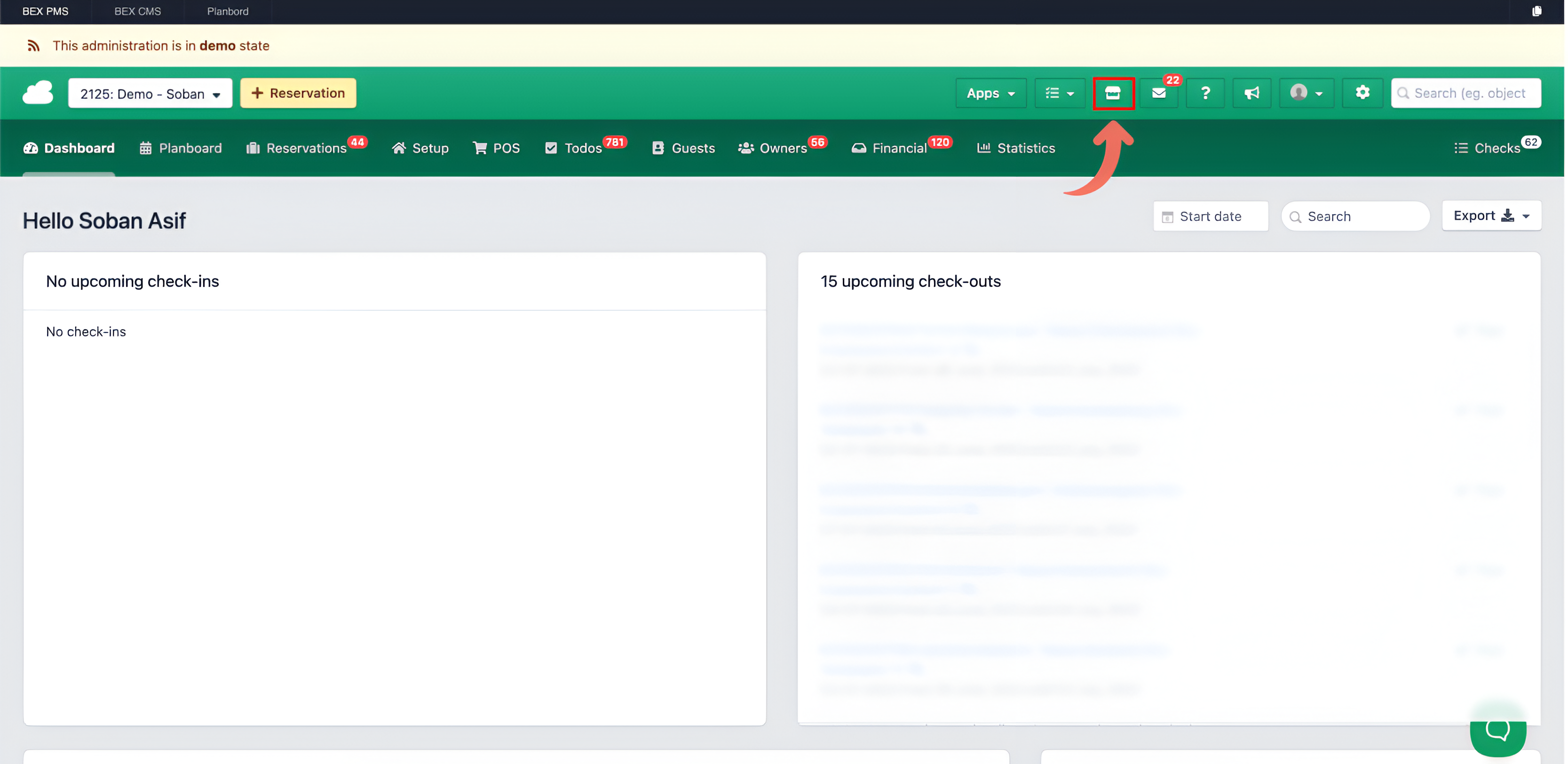
After you have access to your demo you can create Apps through the App Store. Follow the icon in your demo administration:
Create your app
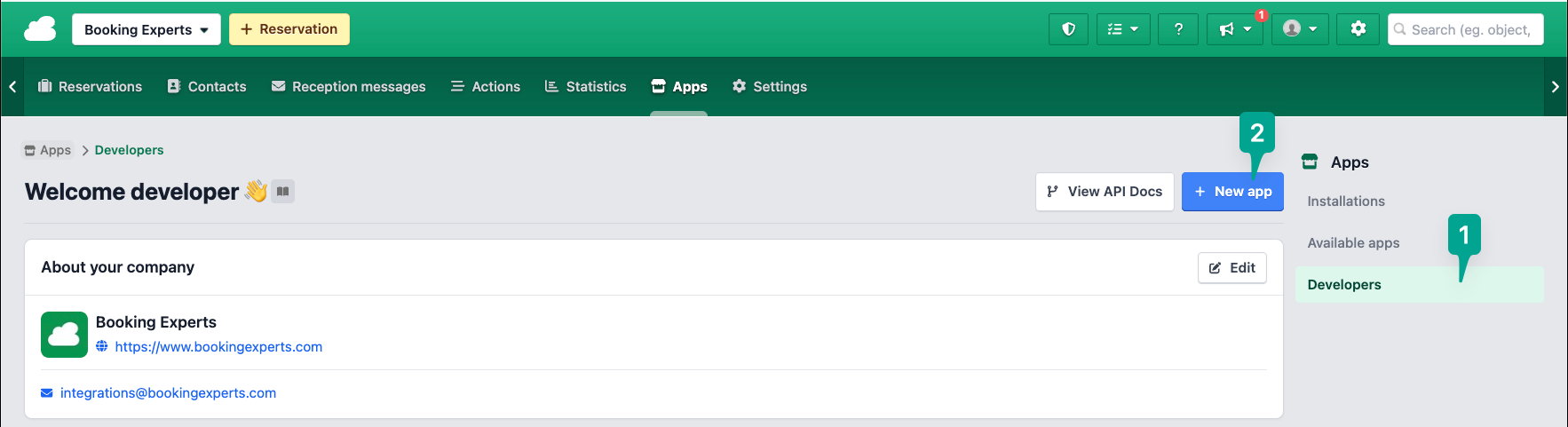
Click on "Developers", then click on "+ New App" to create your app:
Booking Experts will take you through the steps to fill in:
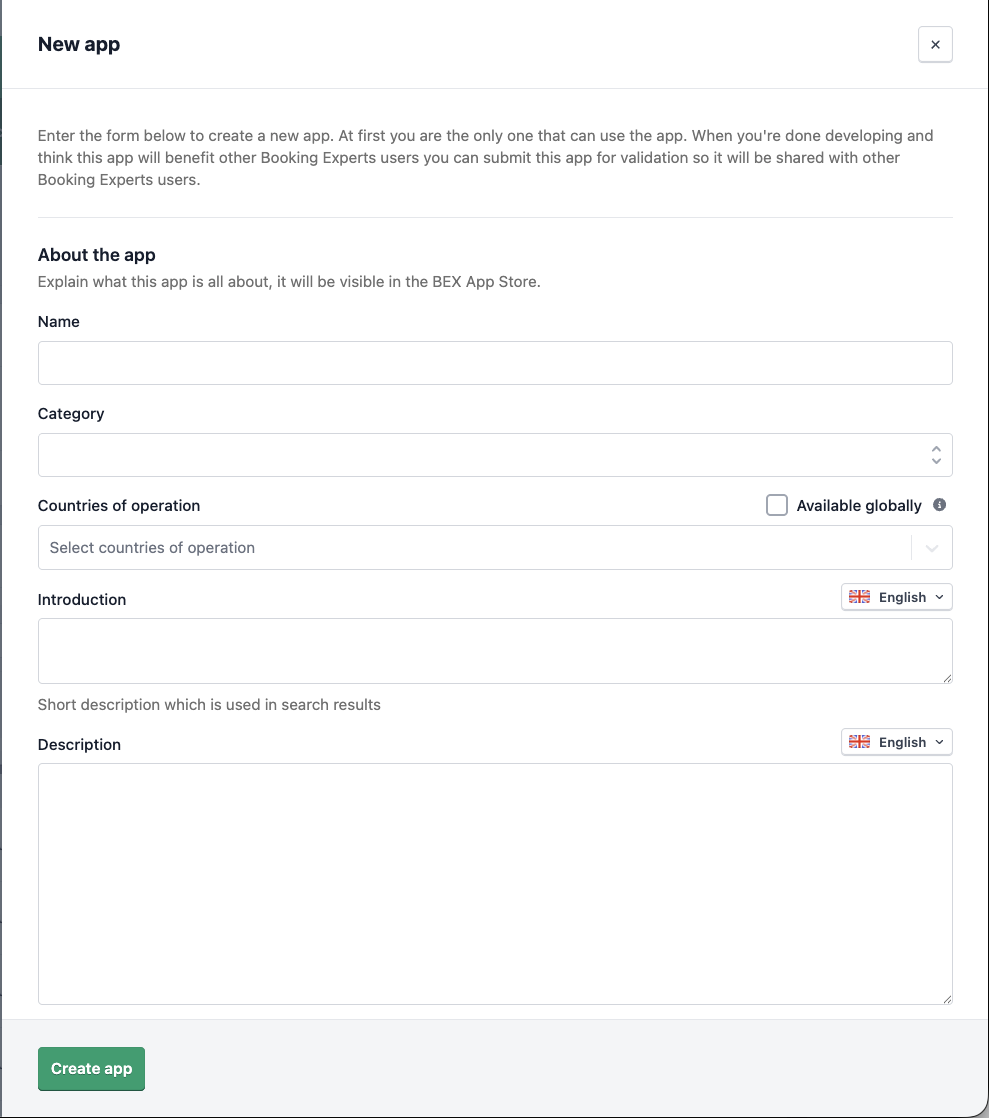
Fill in as much information as possibleIn order to make navigation and discovery a better experience for your and our customers, please make sure you fill in ALL the relevant information about your application.
Even if you are creating a custom application for yourself or a client, it will help us at Booking Experts understand what need your application is filling.
As we try to keep an efficient and clean app store, please help us make sure that your application is up to date and explanatory.
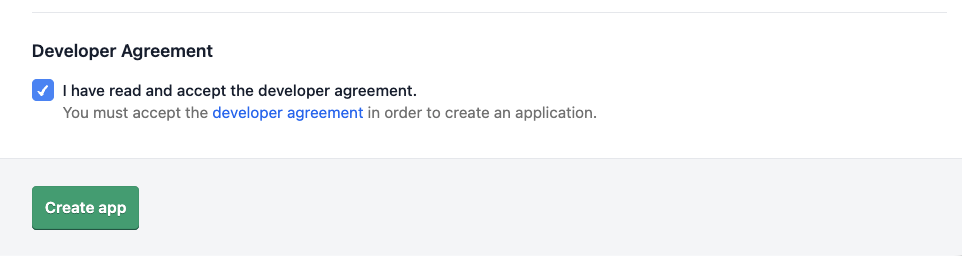
Finally, read and accept the developer agreement, and click on "Create app":
Make your first API request
After creating your app, you must install it on the Demo organization. To do that, go to the Available apps section and search for your app.
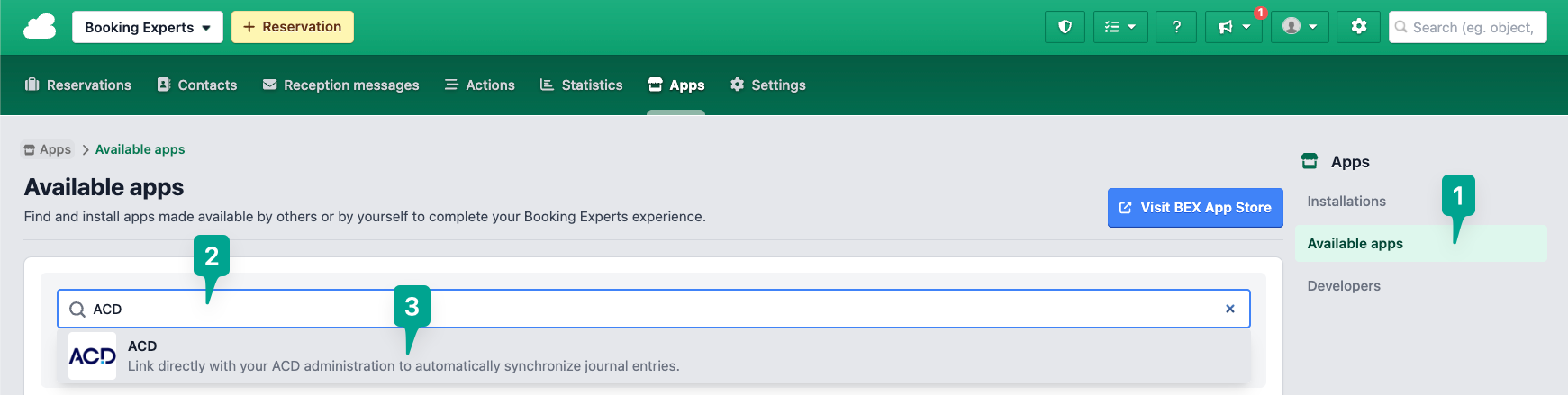
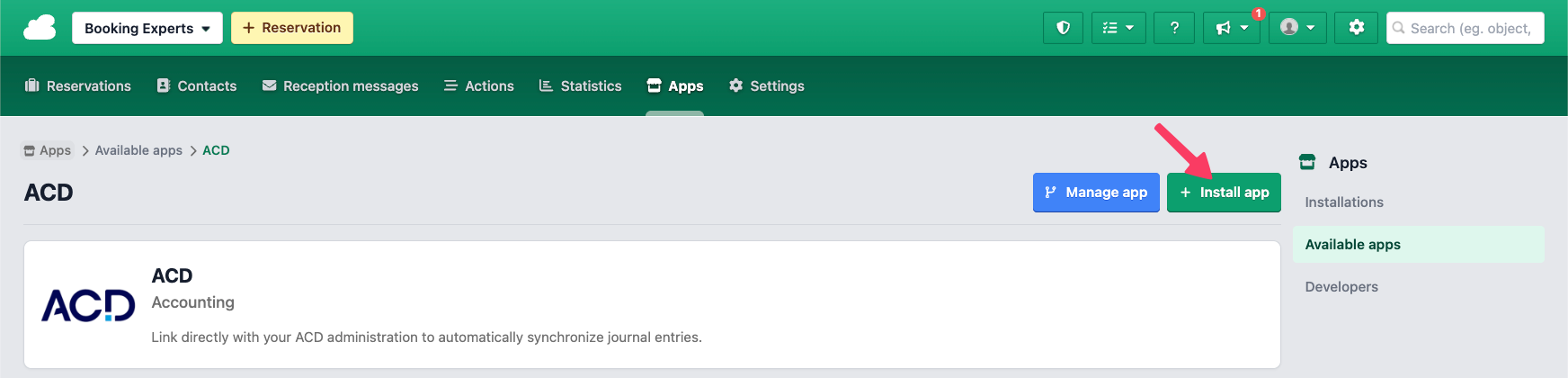
Then, click on your app and then on "+ Install App".
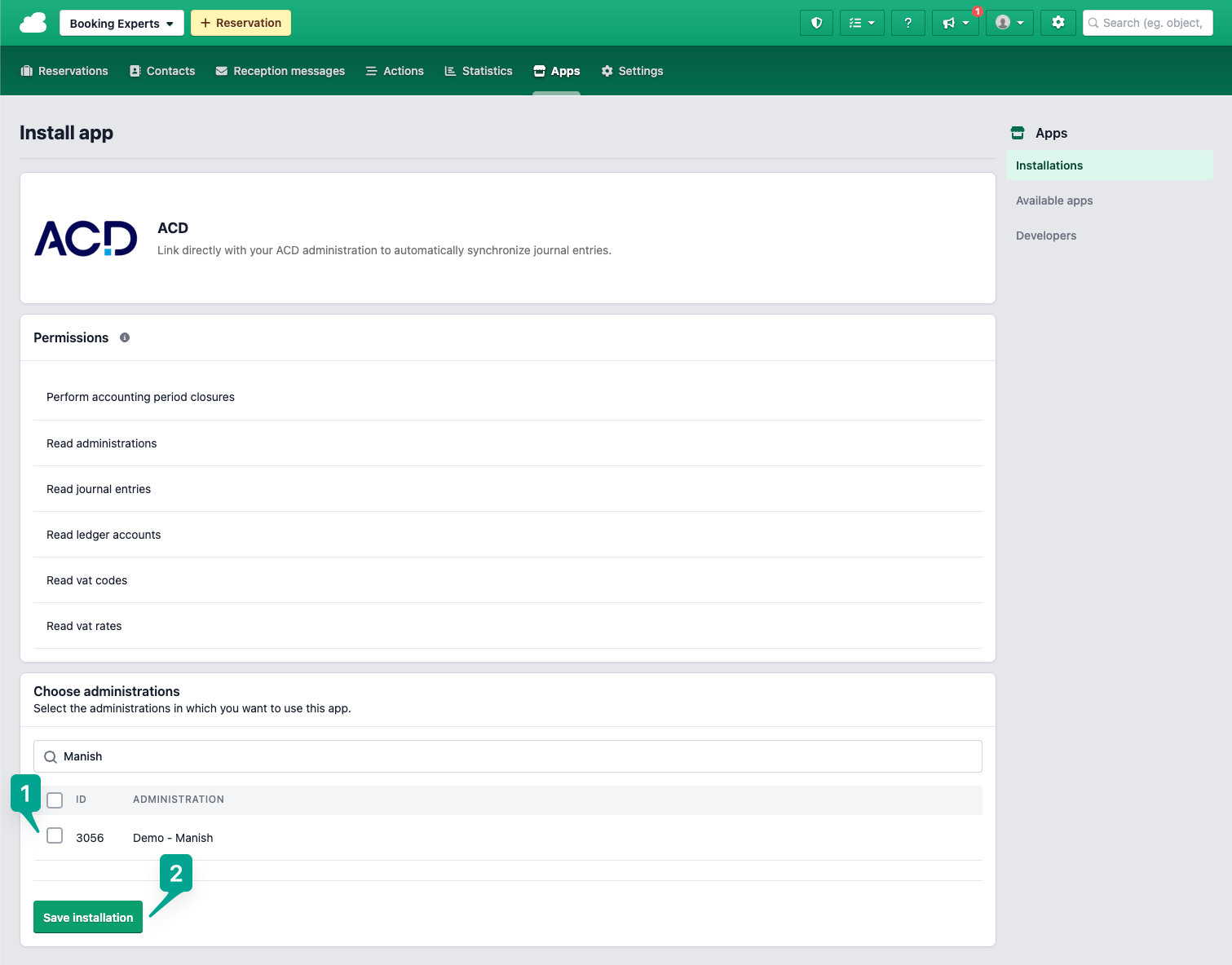
You will see all the permissions that your app needs and a list of parks/administrations that you need to give access to in your Demo organization. Select your Demo park and click on "Save installation" This will invoke the OAuth2 Flow to authenticate your app on your Demo organization.
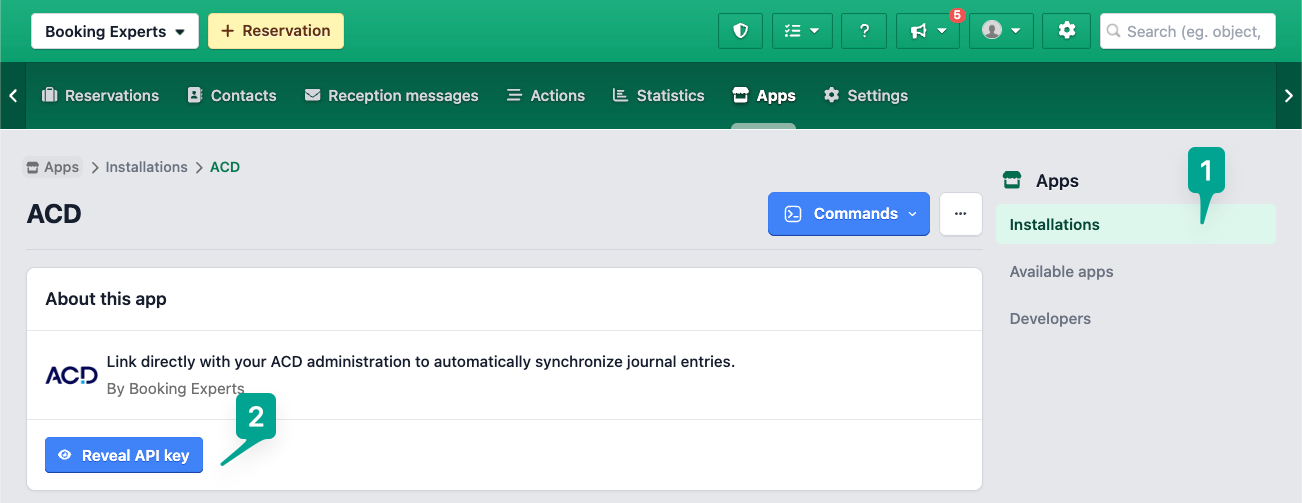
After this, you will be able to find the installation details such as the API key for the organization in the installation page of the app. This is also the exact flow that a customer installing your app will go through.
Now, you can make API requests from your app using the OAuth flow and the provided authentication. You will also find the API key to access the organization on the app installation page, if you want to test out the connection.
Updated 4 months ago